
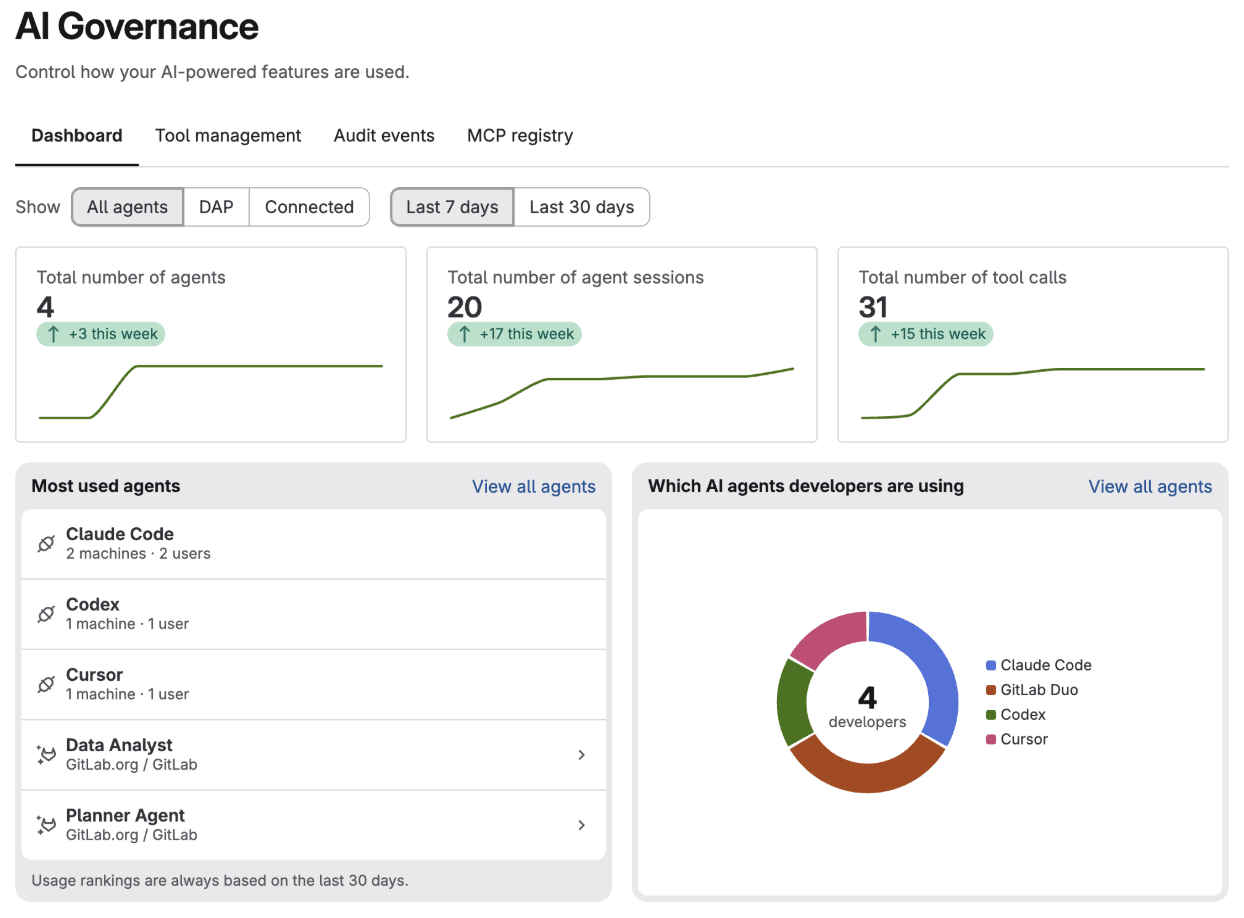
AI coding agents are writing and changing code, from GitLab Duo Agent Platform agents to externally connected agents like Claude Code, Cursor, and Codex. You are accountable for what those agents do, yet most of their activity stays invisible: which agents ran, who used them, and what they touched. Teams often struggle with understanding whether a developer used a tool or model that is approved or not.
The AI Governance Dashboard, now in beta, gives you one place to see agent activity across your top-level group. It brings GitLab Duo Agent Platform agents and the external agents your developers connect into one view, showing which agents ran, who used them, and which projects they touched. The dashboard also shows the tools and sessions associated with each agent.
With that audit trail in place, you can answer the questions auditors and risk owners ask: who ran this agent, what did it do, and who is accountable for it. Every agent action gets recorded in one audit trail, detailing the model it used, the tools it called, and the project it ran in. You can now investigate a session or hand an auditor evidence without stitching together multiple sources of data.
Watch a demo of the AI Governance Dashboard:
Gain visibility into AI agent activityMore AI agents are running across your organization than you can track by hand. GitLab Duo Agent Platform agents run inside GitLab, while externally connected agents like Claude Code, Cursor, and Codex run on developers' own machines.
The result is the shadow AI problem: real work happening in your projects, from many tools, that no one accountable can see in one place or tie to a team member.
The AI Governance Dashboard brings that activity into view and connects each agent to the developer behind it. To turn it on in your top-level group, go to AI > Governance. GitLab Duo Agent Platform agents and externally connected agents appear together, and you can toggle between the views to see all agents, just Duo Agent Platform Agents or just externally connected agents. Three tiles at the top give you a baseline: how many agents ran, how many sessions they started, and how many tool calls they made over the past seven or 30 days. Each tile shows the daily trend and the change from the previous period, so a spike, like a new tool your team started using last week, stands out. The cards below tell you where to act. You can check whether the agents your developers rely on match the ones you approved, see which projects carry the most agent activity and need closer review, and know who to talk to when usage shifts.
Prove what every agent didManaging AI risk starts with knowing what every agent did and who prompted it. Traditional audit trails were built for human changes, so that record is often scattered across tools or missing. GitLab records every agent action as an audit event, so you can investigate an incident or answer an auditor from one place.
Open any GitLab Duo Agent Platform session to see the prompt the developer sent, the tools the agent called, the MCP servers it used, the model that ran, and the project it changed. From there, you can download an immutable copy of the session as evidence, or stream the events to your security information and event management (SIEM) system.
Set up your dashboard todayIt only takes a few steps to set up the AI Governance Dashboard:
- Check access. The dashboard needs the Owner role on the top-level group, or a custom role with the
read_agent_artifactsability. If the people who should watch agent activity don’t have Owner access, create that custom role first. - Turn on AI audit event storage. Storage is off by default, and events are only recorded after you turn it on. In your top-level group, go to Settings > GitLab Duo, select Change configuration, and then Store AI audit events in the Data and privacy section. You need to have an Owner or Security Manager role to have access.
- Open the dashboard. In your top-level group, go to AI > Governance, and select the Dashboard tab to see your GitLab Duo Agent Platform activity.
- Connect your externally connected agents. Sign in with GitLab CLI (glab) 1.122.0 or later on macOS or Linux. To capture Claude Code sessions, run
glab govern setup, which installs the Claude Code hooks. To also capture Cursor and Codex sessions, runglab govern setup --agents codex,cursor, which adds a background job that sends those sessions every 30 minutes. Runglab govern doctorto confirm the setup works.
The AI Governance Dashboard is in beta for GitLab Premium and Ultimate customers. Turn it on for your top-level group to keep oversight of AI usage as fast as your teams adopt it.
Not on GitLab yet? Try GitLab Ultimate for free and use the AI Governance Dashboard to get started.