
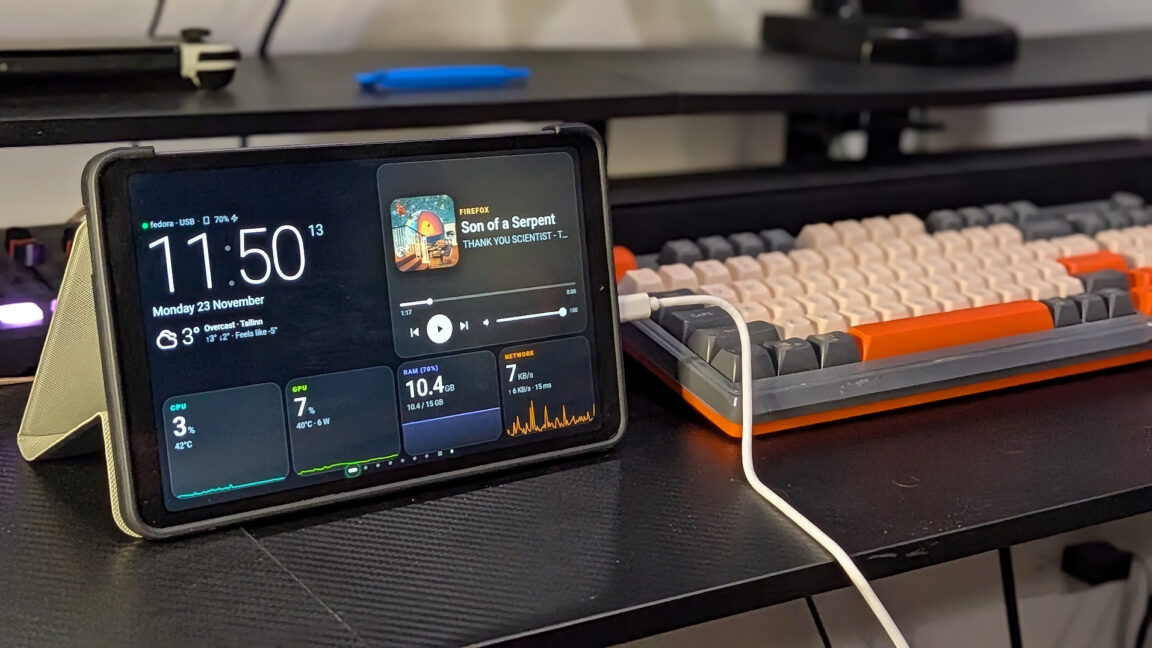
My kitchen junk drawer used to hold takeout menus and coupons, but it has since become a storage spot for old tablets or phones. Like me, you probably have a few devices lying around that are perfectly functional, but might not meet your daily driving needs. It's tucked away out of view, meant to live out the rest of its life in a drawer before finally being cleaned out and donated the next time someone opens the drawer and asks why you're holding on to outdated, unused devices. Thankfully, PhoneBox has a solution. You weren't hoarding old tech; you were waiting for the proper use.
The PhoneBox home screen displays useful stats and what's currently playing in your browser. Credit: Nick IndgeI had an old AllDoCube iPlay 50 mini Pro 8.4-inch tablet that seemed like the perfect candidate. I bought the tablet second-hand as a possible big-screen gaming and emulation tablet to use with a telescopic control deck, but I quickly found I vastly preferred just using a dedicated device. Since that realization, this decent little unit has lived its life like so many other forgotten devices in a drawer.
Launch applications on your PC from the connected Android device. Credit: Nick Indge Installation is a doddleGetting PhoneBox up and running on my tablet and PC couldn't have been any simpler. After making sure that the Android tablet was in developer mode, the process was as simple as plugging the tablet into my PC via USB and executing a single copied command in my Linux terminal. The script downloaded the PhoneBox 0.9.29 software for my PC, verified the downloaded checksum against the release, and walked me through a few quick Y/N installation questions. The script offers to create a systemd user service so the desktop agent launches after initial login, and even asks if you'd like it to install the PhoneBox APK to your connected Android device.
Read full article
Comments